Showing posts with label Deadboot. Show all posts

Monday, May 16, 2016

How to fix bootloop Myphone My36 via Wiko Fever Firmware

How to fix bootloop Myphone My36 via Wiko Fever Firmware


This tutorial teach you on how to fix bootloop and deadboot for Myphone My36. Since we still no available stockrom for My36 we will use Wiko Fever firmware which OTA of this phone. This already tested of our members. To flash this firmware you need to download all needed requirements. Just follow my instructions carefully.
How to fix bootloop Myphone My36


Requirements:
WIKO FEVER STOCKROM
PC/LAPTOP(WINDOWS OS)
USB CABLE
PHONE


FOR WINDOWS XP/7 -INSTALLING DRIVERS
1. Download Mediatek Driver and Extract then Install the driver for 32 or 64 bit operating system of windows 7.
Driver Choose 32 or 64 bit
2.  Before you plug your phone in PC, you need to focus in Device Manager, then plug your phone without the battery you only have approximately 5 seconds to appear MT65xx device that shows under Other devices, you need to right click it as soon as you see it.
MTK USB PORT

Then after you rightclick, click to Update driver software

3. Then choose - Browse my computer for driver software
Browse Driver

Browse the Mediatek MT65xx Preloader Driver folder

Make sure you know the version of OS to choose the right driver for your PC.

Choose your OS version, then choose if 32-bit or 64-bit for your PC.

E.G. s Win7  folder:
usb2ser_Win7.inf - if 32-bit
usb2ser_Win764.inf - if 64-bit

4. Another options, to find right driver for your phone is to open your internet while your phone is connected without the battery and automatically searching driver for your phone.

FOR WINDOWS 8/8.1/10 -INSTALLING DRIVERS
1. Download all necessary files and Enable USB Debugging mode in your phone..
2. Install Drivers USB_VCOM_Driver.rar
In Device Manager Right click on PC name(Right Side) and then click on Add legacy hardware as shown in image below.
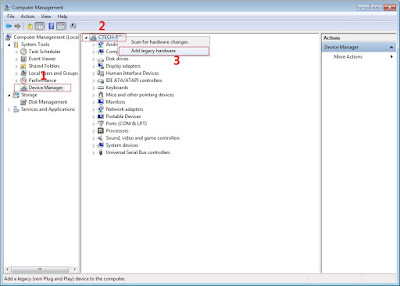
add legacy
Now in Add Hardware Wizard click on Next » Install the Hardware that i manually select from a list (Advanced) » Show All Devices » Next » Have a Disk, Now select the any inf file from where you extracted the downloaded VCOM driver package.

mediatek preloader

3.  Now Click on Next and select Install this driver software anyway and wait for finishing the process.

Install driver anyway

4.  After installation is finished then Restart your computer, That's it.
If still not success in installing driver just Disabled Driver Signature Verification
1. Go to PC Settings>General>Troubleshoot>Advanced Options>Startup Settings>Disabled Driver Signature Enforcement>Then Restart
disabled driver signature verification
Once you disabled. Then follow the procedure above to install the driver. Once success proceed to next step.
5. Download SP_Flash_Tool_v5.1352.01.rar and extract then click flash_ tool to open
Click Flash tool

6. Click Scatter_loading and open your scatter file like image below(I'm using mt6572 scatter File)

Click Scatter Loading


7. Check all except preloader. (If your device is hardbrick/deadboot apply check in preloader)

Uncheck Preloader


8. Click download
Click Download


9. Wait until green circle appear

SPFT SUCCESS GREEN CIRCLE


Remove your phone to usb cable then insert your battery and On your android phone..Enjoy!

Note: If not reboot try factory reset in recovery mode of your phone.

Saturday, May 14, 2016

How to fix bootloop for Myphone My32L

How to fix bootloop for Myphone My32L

This tutorial teach you how to fix bootloop or deadboot Myphone My32L. This firmware or stockrom of My32L need to flash via SPFT using your working USB cable and PC. Just follow our instructions carefully.
How to fix bootloop for Myphone My32L


Requirements:
STOCKROM
PC/LAPTOP(WINDOWS OS)
USB CABLE
PHONE


FOR WINDOWS XP/7 -INSTALLING DRIVERS
1. Download Mediatek Driver and Extract then Install the driver for 32 or 64 bit operating system of windows 7.
Driver Choose 32 or 64 bit
2.  Before you plug your phone in PC, you need to focus in Device Manager, then plug your phone without the battery you only have approximately 5 seconds to appear MT65xx device that shows under Other devices, you need to right click it as soon as you see it.
MTK USB PORT

Then after you rightclick, click to Update driver software

3. Then choose - Browse my computer for driver software
Browse Driver

Browse the Mediatek MT65xx Preloader Driver folder

Make sure you know the version of OS to choose the right driver for your PC.

Choose your OS version, then choose if 32-bit or 64-bit for your PC.

E.G. s Win7  folder:
usb2ser_Win7.inf - if 32-bit
usb2ser_Win764.inf - if 64-bit

4. Another options, to find right driver for your phone is to open your internet while your phone is connected without the battery and automatically searching driver for your phone.

FOR WINDOWS 8/8.1/10 -INSTALLING DRIVERS
1. Download all necessary files and Enable USB Debugging mode in your phone..
2. Install Drivers USB_VCOM_Driver.rar
In Device Manager Right click on PC name(Right Side) and then click on Add legacy hardware as shown in image below.

add legacy
Now in Add Hardware Wizard click on Next » Install the Hardware that i manually select from a list (Advanced) » Show All Devices » Next » Have a Disk, Now select the any inf file from where you extracted the downloaded VCOM driver package.

mediatek preloader

3.  Now Click on Next and select Install this driver software anyway and wait for finishing the process.

Install driver anyway

4.  After installation is finished then Restart your computer, That's it.
If still not success in installing driver just Disabled Driver Signature Verification
1. Go to PC Settings>General>Troubleshoot>Advanced Options>Startup Settings>Disabled Driver Signature Enforcement>Then Restart
disabled driver signature verification
Once you disabled. Then follow the procedure above to install the driver. Once success proceed to next step.
5. Download SP_Flash_Tool_v5.1352.01.rar and extract then click flash_ tool to open
Click Flash tool

6. Click Scatter_loading and open your scatter file like image below(I'm using mt6572 scatter File)

Click Scatter Loading


7. Check all except preloader. (If your device is hardbrick/deadboot apply check in preloader)

Uncheck Preloader


8. Click download
Click Download


9. Wait until green circle appear

SPFT SUCCESS GREEN CIRCLE


Remove your phone to usb cable then insert your battery and On your android phone..Enjoy!

Note: If not reboot try factory reset in recovery mode of your phone.


Monday, March 28, 2016

How to fix bootloop and unbrick your Cloudfone Excite Prime

How to fix bootloop and unbrick your Cloudfone Excite Prime
Cloudfone Excite Prime Bootloop and Stockrom


Specs:
Display: 5.5 Inch HD IPS 1280 x 720 resolution at 267 ppi
CPU: 1.4 GHz MT6592M octa core processor
GPU: Mali 450MP
RAM: 2 GB
ROM: 16 GB expandable via micro SD card slot up to 32 GB
Rear Camera: 13 MP Autofocus w/ LED flash
Selfie Camera: 5 MP
Battery: 2,820 mAh
OS: Android 5.1 Lollipop
Connectivity: WiFi, 3G, Bluetooth, GPS, dual SIM, USB OTG
Ohers: Free Spotify Edition Earphones, Screen Protector, Clear Jelly Case
Price: 3,999 Pesos

Since we don't have available stockrom as for the moment. I just want you to teach on how to fix bootloop, softbrick, deadboot or unbrick your CEP. This stockrom came from Micromax e353 which the OEM of CEP. Once you have completed all the requirements then you must proceed and follow the step by step procedure carefully.

Requirements:
SP_Flash_Tool_v5.1352.01.rar
or
SP_Flash_Tool_v5.1424.00.rar

FOR WINDOWS XP/7 -INSTALLING DRIVERS
1. Download Mediatek Driver and Extract then Install the driver for 32 or 64 bit operating system of windows 7.
Driver Choose 32 or 64 bit
2.  Before you plug your phone in PC, you need to focus in Device Manager, then plug your phone without the battery you only have approximately 5 seconds to appear MT65xx device that shows under Other devices, you need to right click it as soon as you see it.
MTK USB PORT

Then after you rightclick, click to Update driver software

3. Then choose - Browse my computer for driver software
Browse Driver

Browse the Mediatek MT65xx Preloader Driver folder

Make sure you know the version of OS to choose the right driver for your PC.

Choose your OS version, then choose if 32-bit or 64-bit for your PC.

E.G. s Win7  folder:
usb2ser_Win7.inf - if 32-bit
usb2ser_Win764.inf - if 64-bit

4. Another options, to find right driver for your phone is to open your internet while your phone is connected without the battery and automatically searching driver for your phone.

FOR WINDOWS 8/8.1/10 -INSTALLING DRIVERS
1. Download all necessary files and Enable USB Debugging mode in your phone..
2. Install Drivers USB_VCOM_Driver.rar
In Device Manager Right click on PC name(Right Side) and then click on Add legacy hardware as shown in image below.

add legacy
Now in Add Hardware Wizard click on Next » Install the Hardware that i manually select from a list (Advanced) » Show All Devices » Next » Have a Disk, Now select the any inf file from where you extracted the downloaded VCOM driver package.

mediatek preloader

3.  Now Click on Next and select Install this driver software anyway and wait for finishing the process.

Install driver anyway

4.  After installation is finished then Restart your computer, That's it.
If still not success in installing driver just Disabled Driver Signature Verification
1. Go to PC Settings>General>Troubleshoot>Advanced Options>Startup Settings>Disabled Driver Signature Enforcement>Then Restart
disabled driver signature verification
Once you disabled. Then follow the procedure above to install the driver. Once success proceed to next step.

II-FLASHING VIA SPFT
1. Open flash_tool.exe, click on the Download Tab
 Extract the downloaded AFP2 stock rom to the new folder you created.
Click flash tool

2. Click Scatter-loading and browse for the scatter file (MT6592_Android_scatter)
3. For Bootloop only
 Make sure flashing mode is set to "Download Only" and check mark all except Preloader.
Note: If deadboot/hardbrick set "Download+Format" and check Preloader.
4. Click Download.
mt6592-scatter-file-spft

5. Turn off your phone, connect your phone to the PC and wait for the flashing to commence.
6. Green Circle image with check will show once flashing is completed. That's it!

SPFT SUCCESS

7. Disconnect your phone in USB cord then open if still bootloop then try to factory reset in recovery settings. To go in recovery mode reboot your phone hold and press power on and volume up simultaneously until recovery mode appeared.


Credits:
CloudFone Excite Prime PH [Support]
John Paul Garmay
Micromax Device


Saturday, March 26, 2016

How to fix bootloop Lenovo a369i via SPFT

How to fix bootloop Lenovo a369i via SPFT

Lenovo a369i


This tutorial will teach you on how to fix bootloop or deadboot of Lenovo A369i via SPFT.

Requirements:
Lenovo a369i Stockrom


FOR WINDOWS XP/7 -INSTALLING DRIVERS
1. Download Mediatek Driver and Extract then Install the driver for 32 or 64 bit operating system of windows 7.
Driver Choose 32 or 64 bit
2.  Before you plug your phone in PC, you need to focus in Device Manager, then plug your phone without the battery you only have approximately 5 seconds to appear MT65xx device that shows under Other devices, you need to right click it as soon as you see it.
MTK USB PORT

Then after you rightclick, click to Update driver software

3. Then choose - Browse my computer for driver software
Browse Driver

Browse the Mediatek MT65xx Preloader Driver folder

Make sure you know the version of OS to choose the right driver for your PC.

Choose your OS version, then choose if 32-bit or 64-bit for your PC.

E.G. s Win7  folder:
usb2ser_Win7.inf - if 32-bit
usb2ser_Win764.inf - if 64-bit

4. Another options, to find right driver for your phone is to open your internet while your phone is connected without the battery and automatically searching driver for your phone.

FOR WINDOWS 8/8.1/10 -INSTALLING DRIVERS
1. Download all necessary files and Enable USB Debugging mode in your phone..
2. Install Drivers USB_VCOM_Driver.rar
In Device Manager Right click on PC name(Right Side) and then click on Add legacy hardware as shown in image below.

add legacy
Now in Add Hardware Wizard click on Next » Install the Hardware that i manually select from a list (Advanced) » Show All Devices » Next » Have a Disk, Now select the any inf file from where you extracted the downloaded VCOM driver package.

mediatek preloader

3.  Now Click on Next and select Install this driver software anyway and wait for finishing the process.

Install driver anyway

4.  After installation is finished then Restart your computer, That's it.
If still not success in installing driver just Disabled Driver Signature Verification
1. Go to PC Settings>General>Troubleshoot>Advanced Options>Startup Settings>Disabled Driver Signature Enforcement>Then Restart
disabled driver signature verification
Once you disabled. Then follow the procedure above to install the driver. Once success proceed to next step.

II-FLASHING VIA SPFT
1. Open flash_tool.exe, click on the Download Tab
 Extract the downloaded AFP2 stock rom to the new folder you created.
Click flash tool

2. Click Scatter-loading and browse for the scatter file (MT6592_Android_scatter)
3. For Bootloop only
 Make sure flashing mode is set to "Download Only" and check mark all except Preloader.
Note: If deadboot/hardbrick set "Download+Format" and check Preloader.
4. Click Download.
mt6592-scatter-file-spft

5. Turn off your phone, connect your phone to the PC and wait for the flashing to commence.
6. Green Circle image with check will show once flashing is completed. That's it!

SPFT SUCCESS

7. Disconnect your phone in USB cord then open if still bootloop then try to factory reset in recovery settings. To go in recovery mode reboot your phone hold and press power on and volume up simultaneously until recovery mode appeared.


Credits:
zyberph.com
Lenovo a369i
iDeactvatedPH